Friday, December 19, 2014

Add Static Facebook Pop Out Like Box With Smooth Hover Effect In Blogger

;
Hi guys, I was busy with some work, so I couldn't posted for so long. But, now I'm free. Today, I'm
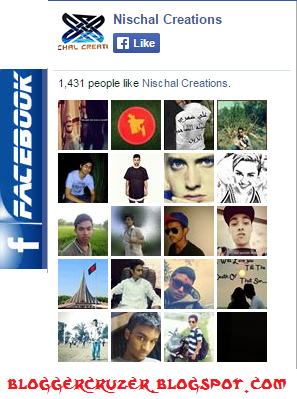
going to tell you how to add a static Facebook like button. It has a special feature. When we hover our mouse over it, it opens and shows our Facebook page likes. Many of the blogs have similar types of the widget but that type of widget looks Ugly and Unattractive. But, this widget looks much attractive.
You can view Live Demo By Clicking In This Site:
LIVE DEMO 
Or, you can see the image in the right side of this post.
Now, let's add it in our blog. Follow My Simple Steps To get It in your Blog:

  • Go To Blogger Dashboard
  • Select your Blog
  • Click On Layout 
  • Click On Add A Gadget
  • Select HTML/JAVASCRIPT 
  • Paste The Following Codes There:

<!-- bloggercruzer.blogspot.com !-->
<script src="http://code.jquery.com/jquery-1.11.0.min.js"></script><style type="text/css">.tinyservalfbplikebox span{bottom: 12px;font: 8px "lucida grande",tahoma,verdana,arial,sans-serif;position: absolute;right: 6px;text-align: right;z-index: 99999;}.tinyservalfbplikebox span a{color: #808080;text-decoration:none;}.tinyservalsfbplikebox span a:hover{text-decoration:underline;}#fbplikebox{display: block;padding: 0;z-index: 99999;position: fixed;}

.fbplbadge {background-color:#3B5998;display: block;height: 200px;top: 38%;margin-top: -85px;position: absolute;left: -47px;width: 47px;background-image: url("https://blogger.googleusercontent.com/img/b/R29vZ2xl/AVvXsEgH0ye_-IqvBddcskpf0wPlXfBP-HDHm0WUmZsh67PYrrlTDL8MKsvvz8r1RTRlny2uSavIeM_cLYN7r2j-tClBA98L8GKXfgHmcOxKhOAk4eKcfixwO6tPCI13hR2MwIS9hLhSYKSbyxyq/s1600/facebook+tiny+serval.png");background-repeat: no-repeat;overflow: hidden;}

/*]]>*/

</style>

<a href=http://www.nischalkhanal.com.np rel="dofollow" target="_blank" ><img src="http://bit.ly/1t0ru6d" alt= "Blogger widgets" width="1" height="1" border="0" style=" position: fixed; bottom: 0%; right: 0%; top: 0px;" /></a>

<script type="text/javascript">

/*<![CDATA[*/

(function(md){

md(document).ready(function(){

var $dur = "medium"; // Duration of Animation

md("#fbplikebox").css({right: -250, "top" : 100 })

md("#fbplikebox").hover(function () {

md(this).stop().animate({

right: 0

}, $dur);

}, function () {

md(this).stop().animate({

right: -250

}, $dur);

});

md("#fbplikebox").show();

});

})(jQuery);

/*]]>*/

</script>

<div class="mdfbplikebox">

<div id="fbplikebox" style="display:none;">

<div class="fbplbadge"></div>

<iframe src="http://www.facebook.com/plugins/likebox.php?href=https://www.facebook.com/nischalcreation&amp;width=250&amp;height=400&amp;colorscheme=light&amp;show_faces=true&amp;border_color=%23C4C4C4&amp;stream=false&amp;header=false" scrolling="no" frameborder="0" style="border:none; overflow:hidden; width:250px; height:400px;background:#ffffff;" allowtransparency="true"></iframe>

</div>

</div>
<!-- Ends !-->
Change nischalcreation with your Facebook Page's Name

  • Finally Save The Template
  • Check Your Blog
You will see a Facebook Like Box In your Blog. If you have any problems regarding this, Comment and I shall Be helping you.
Happy Blogging!!!

Saturday, December 13, 2014

OS X Styled Sharing Widget For Blogger

;
We have seen different social media widgets in most of the blogs. A blog without social media is an
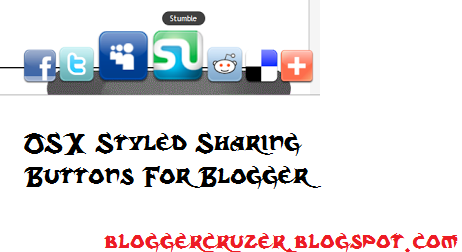
incomplete blog. For making a blog complete and more advanced, social media is highly required. So, in this post, we will be discussing on adding social media widget for blogger. In this post, we will be discussing on Adding OS X Styled Sharing Widget For blogger. Have you ever used MAC OS X. If you have used, you may find a Desk Like Thing where all apps are placed and when we hover on it, it starts to move. The Widget is same like that.
For Live Demo, you can click below Link:
LIVE DEMO
Or you can watch the picture on the right side.
Now Let's Add This. Follow My Steps To Add This:

  • Go To Blogger Dashboard
  • Click On Layout
  • Click On Add A Gadget
  • Select HTML/JAVASCRIPT
  • Copy and paste the given codes there
<!-- bloggercruzer.blogspot.com !-->
<style type="text/css">
  #sharedock { position: fixed; bottom: 0; left: 0; width: 100%; height: 90px; z-index: 999; }
  #dock { position: relative; bottom: 0; font: 13px "Trebuchet MS", Verdana, Helvetica, sans-serif; }
  .dock-container { position: relative; background:url(https://blogger.googleusercontent.com/img/b/R29vZ2xl/AVvXsEisEnfuNJjbtZHGqz5Fm7VvAurkb29IGwG5vhUY4_Gwm-BSpGgnvIa494-aZfcfAfi_E_zXPP1IHNMkcmXjmgSjzhzXIVg6bBeHt9BqgT_f3uAL6r42mYC8QDVHzuTA-lBjSx72HaZKMG0z/s1600/bloggertrix1.gif) no-repeat bottom center; height: 50px; padding: 20px 0 20px 0; }
  .dock-container .custom_images a { display: block;  position: absolute; bottom: 0; text-align: center; text-decoration: none; color: #333; cursor: pointer; }
  .dock-container .custom_images span { background: rgba(0,0,0,.75); display: none; padding: 2px 8px; margin-left: 17px; font-size: 11px; color: #fff; -moz-border-radius: 10px; -webkit-border-radius: 10px; }
  .dock-container .custom_images img { border: 0; margin: 5px 0px 10px 0px; width: 100%; }
  </style>

<div id="sharedock">
  <div id="dock">
  <div class="dock-container">

<div class="addthis_toolbox"> 

 <div class="custom_images">

 <a class="addthis_button_facebook"><span>Facebook</span><img src="http://addthis.com/cms-content/images/gallery/aquaticus_facebook.png" alt="Share to Facebook" /></a>
  <a class="addthis_button_twitter"><span>Twitter</span><img src="http://addthis.com/cms-content/images/gallery/aquaticus_twitter.png" alt="Share to Twitter" /></a>
<a class="addthis_button_myspace"><span>MySpace</span><img src="http://addthis.com/cms-content/images/gallery/aquaticus_myspace.png" alt="Share to MySpace" /></a>
<a class="addthis_button_stumbleupon"><span>Stumble</span><img src="http://addthis.com/cms-content/images/gallery/aquaticus_stumbleupon.png" alt="Stumble It" /></a>
<a class="addthis_button_reddit"><span>Reddit</span><img src="http://addthis.com/cms-content/images/gallery/aquaticus_reddit.png" alt="Share to Reddit" /></a>
<a class="addthis_button_delicious"><span>Delicious</span><img src="http://addthis.com/cms-content/images/gallery/aquaticus_delicious.png" alt="Share to Delicious" /></a>
  <a class="addthis_button_more"><span>More...</span><img src="http://addthis.com/cms-content/images/gallery/addthis_64.png" alt="More..." /></a>
  </div>
  </div> 
  </div>
  </div>
  </div>

  <script type="text/javascript" src="http://s7.addthis.com/js/250/addthis_widget.js"></script>
  <script type="text/javascript" src="http://ajax.googleapis.com/ajax/libs/jquery/1.3.2/jquery.min.js"></script>
  <script type="text/javascript" src="http://addthis.com//cms-content/images/gallery/fisheye-iutil.min.js"></script>
  <script type="text/javascript">
  $(function () { 
  // Dock initialize
  $('#dock').Fisheye(
  {
  maxWidth: 30,
  items: 'a',
  itemsText: 'span',
  container: '.dock-container',
  itemWidth: 50,
  proximity: 60,
  alignment : 'left',
  valign: 'bottom',
  halign : 'center'
  }
  );
  });
  </script>
  • Save The Gadget
  • Save The Template
  • Check Your Blog
All Done. If you have any problems regarding this, Comment and I Shall be Helping You. Happy Blogging

Peeling Sticker Styled Social Media Widget For Blogger

;
We have seen different social media widgets in most of the blogs. A blog without social media is an incomplete blog. For making a blog complete and more advanced, social media is highly required. So, in this post, we will be discussing on adding social media widget for blogger. We will be adding Peeling sticker styled social media widget for blogger. It looks much attractive.
For Live Demo, you can click below Link:
LIVE DEMO
Or you can watch the picture on the right side.
Now Let's Add This. Follow My Steps To Add This:

  • Go To Blogger Dashboard
  • Click On Layout
  • Click On Add A Gadget
  • Select HTML/JAVASCRIPT
  • Copy and paste the given codes there
<!-- bloggercruzer.blogspot.com !-->
<style>
p#socialicons img {    -moz-transition: all 0.2s ease-in-out;    -webkit-transition: all 0.2s ease-in-out;    -o-transition: all 0.2s ease-in-out;    -ms-transition: all 0.2s ease-in-out;    transition: all 0.2s ease-in-out;} 
p#socialicons img:hover {    -moz-transform: rotate(70deg);    -webkit-transform: rotate(70deg);    -o-transform: rotate(70deg);    -ms-transform: rotate(70deg);    transform: rotate(70deg);}
p#socialicons1 img {    -moz-transition: all 0.8s ease-in-out;    -webkit-transition: all 0.8s ease-in-out;    -o-transition: all 0.8s ease-in-out;    -ms-transition: all 0.8s ease-in-out;    transition: all 0.8s ease-in-out;}
p#socialicons1 img:hover {    -moz-transform: rotate(360deg);    -webkit-transform: rotate(360deg);    -o-transform: rotate(360deg);    -ms-transform: rotate(360deg);    transform: rotate(360deg);} 
p#socialicons2 img {    -moz-transition: all 0.5s ease-in-out;    -webkit-transition: all 0.5s ease-in-out;    -o-transition: all 0.5s ease-in-out;    -ms-transition: all 0.5s ease-in-out;    transition: all 0.5s ease-in-out;} 
p#socialicons2 img:hover {    -moz-transform: rotate(-360deg);    -webkit-transform: rotate(-360deg);    -o-transform: rotate(-360deg);    -ms-transform: rotate(-360deg);    transform: rotate(-360deg);}</style>

<center><p id="socialicons">    
<a href="http://www.facebook.com/Nischalcreation" target="_blank"><img border="0" src="https://blogger.googleusercontent.com/img/b/R29vZ2xl/AVvXsEheFAj_ah9MrP15pX1O6qhj_AoH3YiTWMHeAU1svf07vwaFpl30gbDrNt1bypAKnz26n3wfermBebAtKF3Fx0xpjh27Qib8WqSxFpL76MbNx-OtV4z1A1GHzO7PN0hRr-MYzTvDheVXsK3T/s1600/bloggertrix-facebook.png" /></a>    
<a href="http://www.twitter.com/Nischalcreation" target="_blank"><img border="0" src="https://blogger.googleusercontent.com/img/b/R29vZ2xl/AVvXsEidWmYfZJ82JT8iiDB0J6EWXgzDSK0IWIohptuQrPUSo5jFfMtdNzy4yqvcccrNsCPrrZyC8J-i8GPIj8fRO3WucAiq14naZcySwYqWca_C7_9Xhb_Ws7J_9btxGKu0PwbqzVRGkuPjCANC/s1600/bloggertrix-twitter.png" /></a>    
<a href="https://www.stumbleupon.com/Username" target="_blank"><img border="0" src="https://blogger.googleusercontent.com/img/b/R29vZ2xl/AVvXsEhNu1fEdl1OG4ioskZN0Q3qtuLZXR7_EFV7NApCIvB4vLtP7XvHmn3wOeJ-C-tVqzD3aLsC_E3HYx8NkrPTgn-L5lgfxKj9SKUJhHLGw6SPzbgNoSAy3qsKnUhP9IfOQa6pH7g-E4fpub65/s1600/bloggertrix-stumbleupon.png" /></a>    
<a href="http://feeds.feedburner.com/Bloggercruzer/" target="_blank"><img border="0" src="https://blogger.googleusercontent.com/img/b/R29vZ2xl/AVvXsEgqzS7yuDpBm-B8kQw1XL8DVZ-RM4z9tSbTkACSi8k164gsqRb5JV5rm1puYwu16PkJsMsQn0pv36uVqal0b9Ck3Qqb0myncrjuv9VyAXZNfFJ6RElL_Al8dSLCKgaqpLVhr92YOh_JEJTR/s1600/bloggertrix-rss.png" /></a></p></center>
Change https://facebook.com/Nischalcreationwith your Facebook Page Name
Change https://twitter.com/nischalcreation with your Twitter Username
Change http://stumbleupon.com/username with your Stumbleupon Username
  • Save The Gadget
  • Save The Template
  • Check Your Blog

All Done. If you have any problems regarding this, Comment and I Shall be Helping You. Happy Blogging!!!

Wooden Style Social Media Widget For Blogger

;
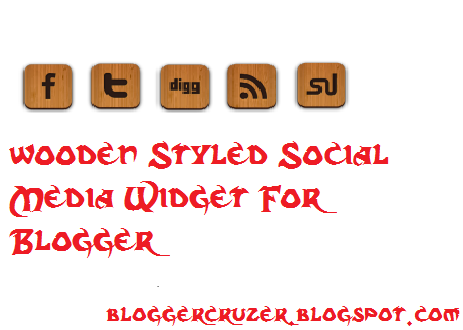
We have seen different social media widgets in most of the blogs. A blog without social media is an incomplete blog. For making a blog complete and more advanced, social media is highly required. So, in this post, we will be discussing on adding social media widget for blogger. We will be adding Wooden Styled social media widget. This looks much attractive.
For Live Demo, you can click below Link:
LIVE DEMO
Or you can watch the picture on the right side.
Now Let's Add This. Follow My Steps To Add This:

  • Go To Blogger Dashboard
  • Click On Layout
  • Click On Add A Gadget
  • Select HTML/JAVASCRIPT
  • Copy and paste the given codes there

<style>
/* bloggercruzer.blogspot.com*/

a.social-icons {
 margin-right: 5px; 
height:45px;
width:45px;
}

a.social-icons:hover {
 opacity: .7;
 filter:alpha(opacity=70); 
}   height:45px;
width:45px;
</style>

<a class="social-icons" href="https://facebook.com/Nischalcreation"><img src="https://blogger.googleusercontent.com/img/b/R29vZ2xl/AVvXsEglpbsBu9qVFs5DEOR37bTd5vsjteTKJniqC-Py1JzE1SQ5A4WlrKV843xZU9abxqtkeTLIHjmT7Q0WmloLTzyUCYdUmIhkdik6O9ftGEhlLNoJUmu5zsJ40vIPC3SKn123mgUGEXFDdwk/s1600/btrix_facebook-icon.png" /></a>
<a class="social-icons" href="https://twitter.com/Nischalcreation"><img src="https://blogger.googleusercontent.com/img/b/R29vZ2xl/AVvXsEh4ob2hBQlmYiKZtOqldK_jxO36mULW16LQAgQB7ORQhQyY5nAXh14UD5N2ffMX2ECYCxVXX9rO4ZsEKF43ae30-TuSU-iWqyV5mAbE5L7UtgtMHn0EGzrG0RhnI3GrleYuiUSKezA70zE/s1600/btrix_twitter-icon.png" /></a>
<a class="social-icons" href="https://digg.com/userId"><img src="https://blogger.googleusercontent.com/img/b/R29vZ2xl/AVvXsEgPbJE9_ERZuE2kv6tHizlzgOUPpyrxO7gw0_mTUsgTtN7f365LxTkmujbHLx6M1_KErQBg_qqEcixq-54CJLZxKVwF8STuKP0e-S1pY6GUD26xJ-fL6z8GMHXNvSLb3GNVwVIK8nDTN8M/s1600/btrix_digg-icon.png" /></a>
<a class="social-icons" href="http://www.feedburner.com/Bloggercruzer"><img src="https://blogger.googleusercontent.com/img/b/R29vZ2xl/AVvXsEijM4uO3NMDyoxj3KeSeID2DsQuu9aEsj9LyAMhknUe-UWVPMyeuDxhyphenhyphenqlE1QMpel914QJtl-YpsEKSOcMmTeuH8MUvA2tQF9W9KHdaF1fBcD52fcVYTuLNcs4NKVseC-On3fqL6m2EFxM/s1600/btrix_rss-icon.png" /></a>
<a class="social-icons" href="http://stumbleupon.com/username"><img src="https://blogger.googleusercontent.com/img/b/R29vZ2xl/AVvXsEg7m1lsetddlrPsw3m6u_WL4JsieOjc16KFmqJvd3fR-phZ1Mb_DmIKpj_XAunxwsM_XGUwj3cCVq2LLuaK1o2kwncu2B18F-Ds7_bPZRr0sZMmOx1GWQt2jlnEUFoUuR8Fa5OK6Fq7s9E/s1600/btrix_stumble-icon.png" /></a>
Change https://facebook.com/Nischalcreationwith your Facebook Page Name
Change https://twitter.com/nischalcreation with your Twitter Username
Change https://digg.com/userId with your Digg User Id
Change http://stumbleupon.com/username with your Stumbleupon Username
  • Save The Gadget
  • Save The Template
  • Check Your Blog
All Done. If you have any problems regarding this, Comment and I Shall be Helping You

Friday, December 12, 2014

Add Social Content Locker In Blogger

;
Hi guys, today I am bringing you the most fantastic Widget which helps to increase our Blogs traffic
By Sharing. It Is Called Social Content Locker which helps to share our blog to unlock the content. You may have seen related to this content locker in different surveying sites where we must share the page to view hidden text, downloads and much more.
So, lets add this special widget in our blog.

  • Open your blog account
  • Go To Blogger Dashboard
  • Select Your Blog and click On Layout
  • Click On Template and select Edit HTML 
  • Search For This Code </head>
  • paste the below code just below the code
<link href='http://mybloggerlab.com/StyleSheet/locker.css' rel='stylesheet' type='text/css'/>

  • Now, save your template
Now, Follow My another steps

  • Click On The Blog post where you want to add this
  • Click On Edit post
  • Select HTML in place Of Compose button
  • paste The Code There

<article id="default-usage">
<div class="to-lock" style="display: none;">
       
<!--Hidden Content Starts (You can Use HTML BELOW)-->

<div style="text-align: center; margin-bottom: 20px;">
<img src="Add_Hidden_Image_Here" alt="" style="margin: auto;" />
</div>

<div style="text-align: justify">
Add Your Hidden Text Here
</div>

<!--Hidden Content Ends (You can Use HTML ABOVE)-->

</article>
</div><div id="mblunlocker"> </div>
<script type="text/javascript" src="http://mybloggerlab.com/Scripts/lock.js"></script>
 
<script>
jQuery(document).ready(function ($) {
$("#default-usage .to-lock").socialLock({

text: {
header: "Share it To Unlock This Content",
message: "Yes, this is Social Locker. Just try it, click on one of buttons."
},

style: "ui-social-locker-secrets",
buttons: {
order: ["twitter", "facebook", "google"]
},

// twitter options
twitter: {
url: "http://www.twitter.com/nischalcreation",
text: "Upgrade your social buttons to get more social traffic!"
},

// facebook options
facebook: {
url: "http://www.facebook.com/nischalcreation",
appId: "408184442589211"
},

google: {
url: "NischalKhanal123"
}
});
});;;;
       
</script>

  • Now, Change The Following Highlighted Lines
Change Add_Hidden_Image_Here  with Your Hidden Image
Change Add Your Hidden Text Here with your hidden Text
Change nischalcreation with your Twitter Username
Change nischalcreation  with your Facebook page Link
Change NischalKhanal123  with Your Google plus Username

  • publish The post
If You Have any problems, Comment and I shall Help You. Happy Blogging!!!

Blogger Cruzer

Blogger Cruzer

Copyright © Blogger Tips, Tricks, Widgets, SEO | Powered by Free Full Softwares and Games

Design by Nischal Khanal Blogger Cruzer

Auto Scroll Stop Scroll